How to Split PDF Pages (Free, No Signup)
You don't need 40 pages — you need three of them. Here's how to pull exactly the pages you want out of any PDF, in seconds.
Last month a friend emailed me a 60-page bank statement and said, "I only need the mortgage part — pages 12 through 18." What he did not want: a 60-page document sitting in his client's inbox with his full account history.
This is the classic split-PDF situation, and it pops up everywhere: a landlord who needs one lease page from a 20-page pack, a student pulling a single chapter from a 400-page textbook PDF, a job applicant extracting pages from a portfolio. Here's how to do it without paying for Adobe Acrobat.
What Does "Splitting a PDF" Actually Mean?
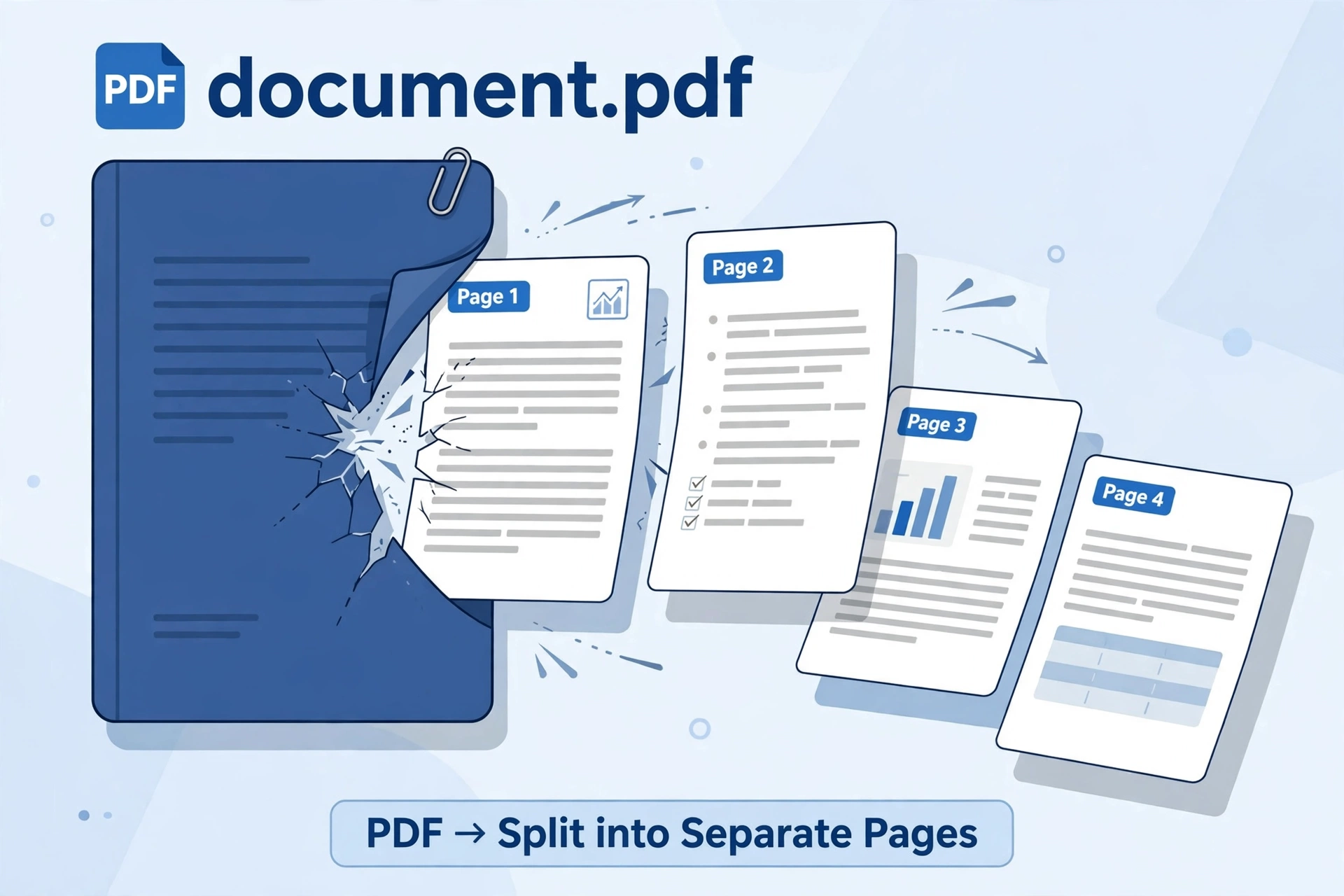
Nothing exotic — you're just pulling pages out of one PDF and saving them as a new, smaller PDF. Think of it like tearing chapters out of a ring binder: the pages themselves don't change, they just live in a new folder now.
Two terms you'll see everywhere, explained in five seconds:
- Extract: pull specific pages out into a new file. That's what 90% of people want.
- Burst: blow every page apart so each one becomes its own separate file. Handy for archiving, or emailing pages to different people.
One honest caveat: you can't split a single page into two documents. If a scan crammed two receipts side by side on one page, that's one page — splitting works on pages, not pieces of pages.
How Do I Split PDF Pages for Free?
Use a browser-based tool — no software, no account, no upload queue. Here's the exact process with our Split PDF tool:
- Open the Split PDF tool. It loads instantly and runs entirely in your browser.
- Drop in your PDF — drag and drop, or click to browse your files.
- Type the pages you want. A range like 3–7 pulls pages 3 through 7. Single pages like 1, 4, 9 grab just those. Combine them — 1–3, 8, 12–15 works too.
- Hit split and download. Processing takes seconds, and the file never leaves your device.
That's the whole job. Sixty seconds, start to finish.
What Are the 4 Ways to Split a PDF?
Different situations need different splits. Here's the cheat sheet:
| Split mode | What you type | Best for |
|---|---|---|
| Page range | 3–7 or 12–18 | Pulling a chapter, section, or statement chunk |
| Specific pages | 1, 4, 9 | Grabbing scattered pages that aren't next to each other |
| Every page | Nothing — it's automatic | One file per page, bundled as a ZIP download |
| Odd / even pages | Nothing — it's automatic | Separating double-sided scans before reordering |
The odd/even mode sounds niche until the day you need it. I once had a 100-page double-sided scan where the scanner had merged odd and even pages in the wrong order — separating them took ten seconds, and reordering was a five-minute drag job in our Merge PDF tool instead of an afternoon of suffering.
What Should I Watch Out For?
Three gotchas I've run into, so you don't have to:
- Double-check your page numbers. PDF readers number pages starting at 1, but some documents have unnumbered cover pages that shift everything by one. Preview the file first if the page count matters.
- Locked PDFs won't open. If the file asks for a password, browser tools can't crack it — unlock it in your PDF reader first, save a copy, and split that.
- Don't upload sensitive files to shady sites. Bank statements, medical records, contracts — use a tool that processes locally in your browser. If a site's privacy policy doesn't clearly say your files are deleted or never uploaded, close the tab.
And the opposite direction: after splitting pages off to email separately, you can stitch them back together with Merge PDF — split and merge are two halves of the same workflow.
One last tip: if your PDF is too big to email even after splitting, the file itself needs slimming down. Our guide on how to reduce PDF file size covers that — or just run it through Compress PDF first and split the smaller file.
Frequently asked questions
Can I extract one page from a PDF for free?
Yes. Open our free Split PDF tool, upload your file, type the page number — for example, just 7 — and download the single-page result. It takes seconds and the page keeps its original quality.
Does splitting a PDF reduce its quality?
No. Splitting only reorganizes existing pages into new files — it doesn't re-render or recompress them, so text, images, and formatting come out identical to the original.
How do I split a PDF into separate files for each page?
Use the "split every page" mode in a split tool. Each page becomes its own PDF file, bundled into a single ZIP download so you don't have to download dozens of files one by one.
Can I split a password-protected PDF?
Not directly — browser-based tools can't open an encrypted PDF without the password. Unlock it first in Adobe Acrobat or your PDF reader, save an unlocked copy, then split that.
Keep reading: a detailed walkthrough of free PDF splitting without uploading your file, and a handy FAQ on separating PDF pages with different tools.