How to Fill and Sign a PDF Without Printing
Your landlord emails a lease at 9pm. No printer, no scanner, and the rent starts Monday — but you don't need either.
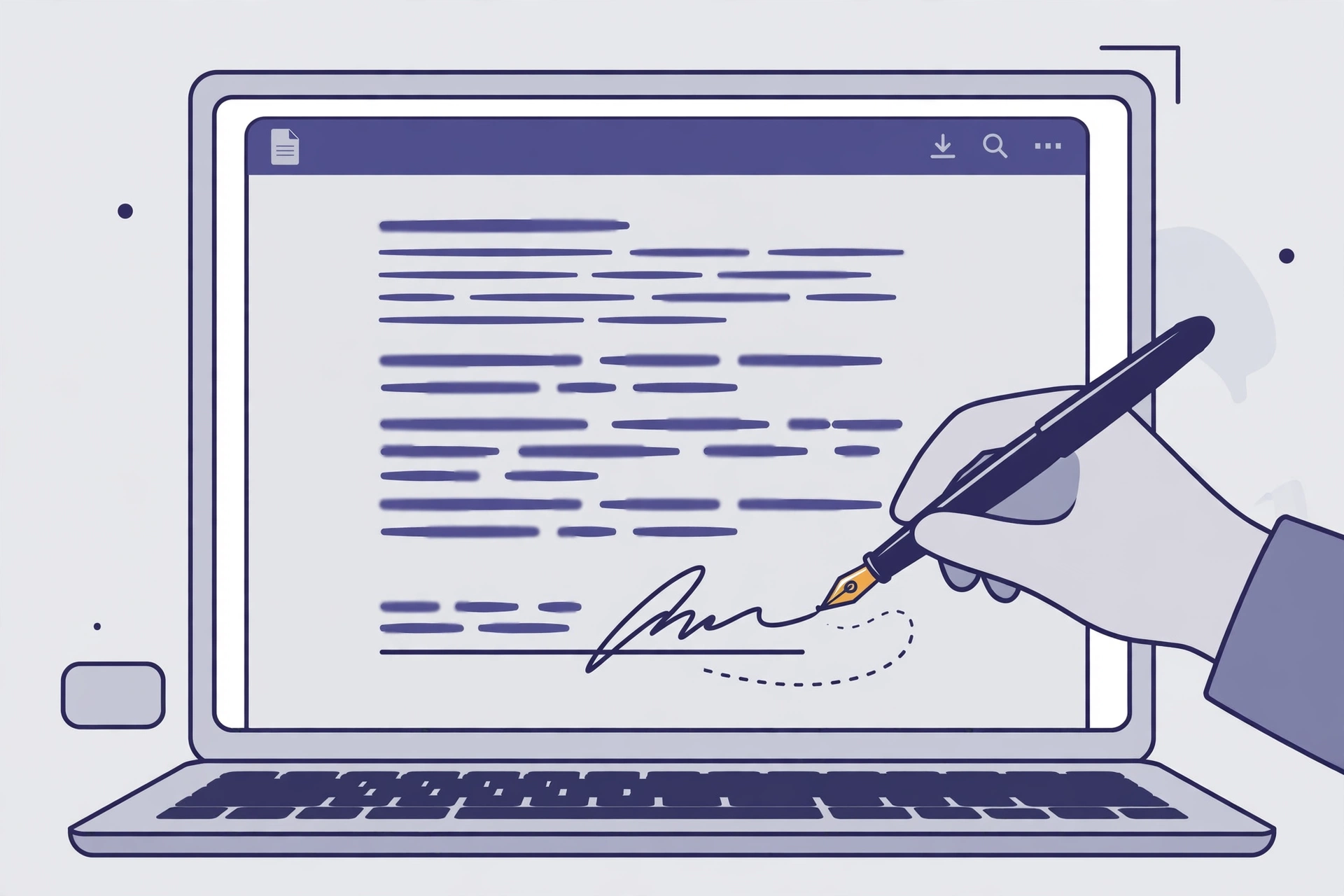
The print-sign-scan ritual is the most wasteful five minutes in office life: printer hunt, pen hunt, scanner app, skewed grainy upload — for something a computer does in sixty seconds. This guide covers the genuinely free route, in the order you should try it.
Why Not Just Use a Free Online Signer?
Here's the trap: "free PDF signing" sites all work the same way — your document gets uploaded to their servers. For a school permission slip, fine. For a tax form or a lease? You've handed your most sensitive paperwork to a company whose business model you don't know. Our guide to whether uploading PDFs is safe covers this at length. The short version: if the document contains anything you wouldn't post publicly, don't upload it — sign it locally.
How Do I Fill and Sign a PDF on Windows?
Microsoft Edge — the browser already on your PC — does this natively:
- Right-click the PDF → Open with → Microsoft Edge. The file opens in the browser's built-in PDF viewer.
- Fill the fields: if the form is interactive, click any field and type — a light blue highlight usually marks fillable fields.
- For flat forms — a scan with no clickable fields — click the Add text icon (a T in a box), click anywhere on the page, and type.
- Sign: click the Draw (pen) icon, pick black ink, and draw your signature.
- Save with the disk icon — rename the file
lease-signed.pdfso it doesn't overwrite the blank original.
Edge's drawing isn't calligraphy, but for a lease, waiver, or school form it's perfectly acceptable — drawn signatures in a viewer are legally fine for everyday documents (see the FAQ).
How Do I Fill and Sign a PDF on a Mac?
- Open the PDF in Preview (double-click it).
- Show the Markup toolbar (the pen-tip icon), then click the signature icon.
- Create a signature: draw it on the trackpad, hold a paper signature up to the camera, or use your iPhone. Preview reuses it forever — one-time setup.
- Click where the signature goes and drag the corners to size it.
- Fill text fields with the text-box tool from the same toolbar, then File → Save.
One signature creation, then every future PDF is a ten-second job. This is the setup I'd hand anyone who signs things regularly.
Can I Sign a PDF on My Phone?
Yes, and it's the fastest option when the document arrives by email at 9pm:
- iPhone: open the PDF in Files or Mail, tap the pen icon (Markup), tap + → Signature, draw your signature once, place it. Share straight back.
- Android: use the Files app's markup, Google Drive's viewer, or a free app like Xodo — Eversign's guide walks through the Xodo flow.
One caveat: a thumb-drawn signature on a 6-inch screen looks like a seismograph reading. Legally it still counts — intent is what matters — but for anything formal, use a tablet or laptop.
Which Method Should I Pick?
| Method | Cost | Signup | Uploads your file? | Best for |
|---|---|---|---|---|
| Microsoft Edge (Windows) | Free | No | No | Quick fills on any Windows PC |
| Preview / Markup (Mac) | Free | No | No | Repeated signing — signature saved once |
| Phone Markup (iOS / Android) | Free | No | No | Documents arriving by email on the go |
| Adobe Acrobat Reader | Free | Optional | No | Forms Adobe's tool reads better |
| Free online signers | Free | Often | Yes — avoid for sensitive docs | Only for non-sensitive documents |
My rule of thumb: Windows → Edge, Mac → Preview, phone → Markup. Online signers only for documents you'd be comfortable losing control of — because you might be.
Common Headaches
Typed name instead of drawn signature? A typed name is a legal signature in the US under the ESIGN Act, but some organisations insist on a drawn one. Draw when in doubt.
Form won't let me type? It's a flat form — use Edge's Add Text overlay or Preview's text box.
Signature looks blurry? Draw it larger than you need, then shrink it — big-to-small downscaling stays crisp.
Sending it back? Flatten the PDF first (print-to-PDF creates a fixed copy) so nobody can edit your entries.
Try it now: open the next PDF that needs signing in Edge or Preview instead of reaching for the printer.
Frequently asked questions
Can I sign a PDF without Adobe or printing it?
Yes. Microsoft Edge on Windows, Preview on Mac, and phone Markup tools all let you type into forms and draw a signature for free — no printing, no signup, no upload.
Are free online PDF signers safe for tax forms and contracts?
Avoid them for anything sensitive. Free online signers upload your document to their servers, where it can be stored or scanned. For tax forms, bank documents, and contracts, use native offline tools instead.
Is an electronic signature legally binding?
In the US, yes — typed or drawn signatures carry the same weight as ink under the ESIGN Act and UETA, provided both parties agree to sign electronically. Certificate-based digital signatures carry more evidentiary weight than a pasted image.
How do I fill a PDF that has no clickable fields?
That's a flat (non-interactive) form. Use an overlay tool: Microsoft Edge's Add Text lets you click anywhere and type over the lines; on Mac, Preview's text box does the same.
Keep reading: is it safe to upload PDFs online, and how to add a watermark to a PDF for free.